Transform Data with AI
Sometimes API data doesn't fit neatly into a table. A column shows [object Object], or the value you need is tucked inside another field.
Transform data with AI fixes this for you. You describe the table you want in plain English, and Note API Connector builds the transformation. No code required.
✅ Split grouped columns into separate, readable columns.
✅ Pull out a single value, like a phone number or an email address.
✅ Keep only the columns you need and drop the rest.
✅ Preview the result before anything changes.
When to Use It
Look at the preview table in the Response Field Mapping view. Use the AI assistant if you see any of these:
- A column shows
[object Object]instead of a real value. - Columns are empty, even though you know the API returned data.
- There are far more columns than you need.
- The value you want is buried inside another column.
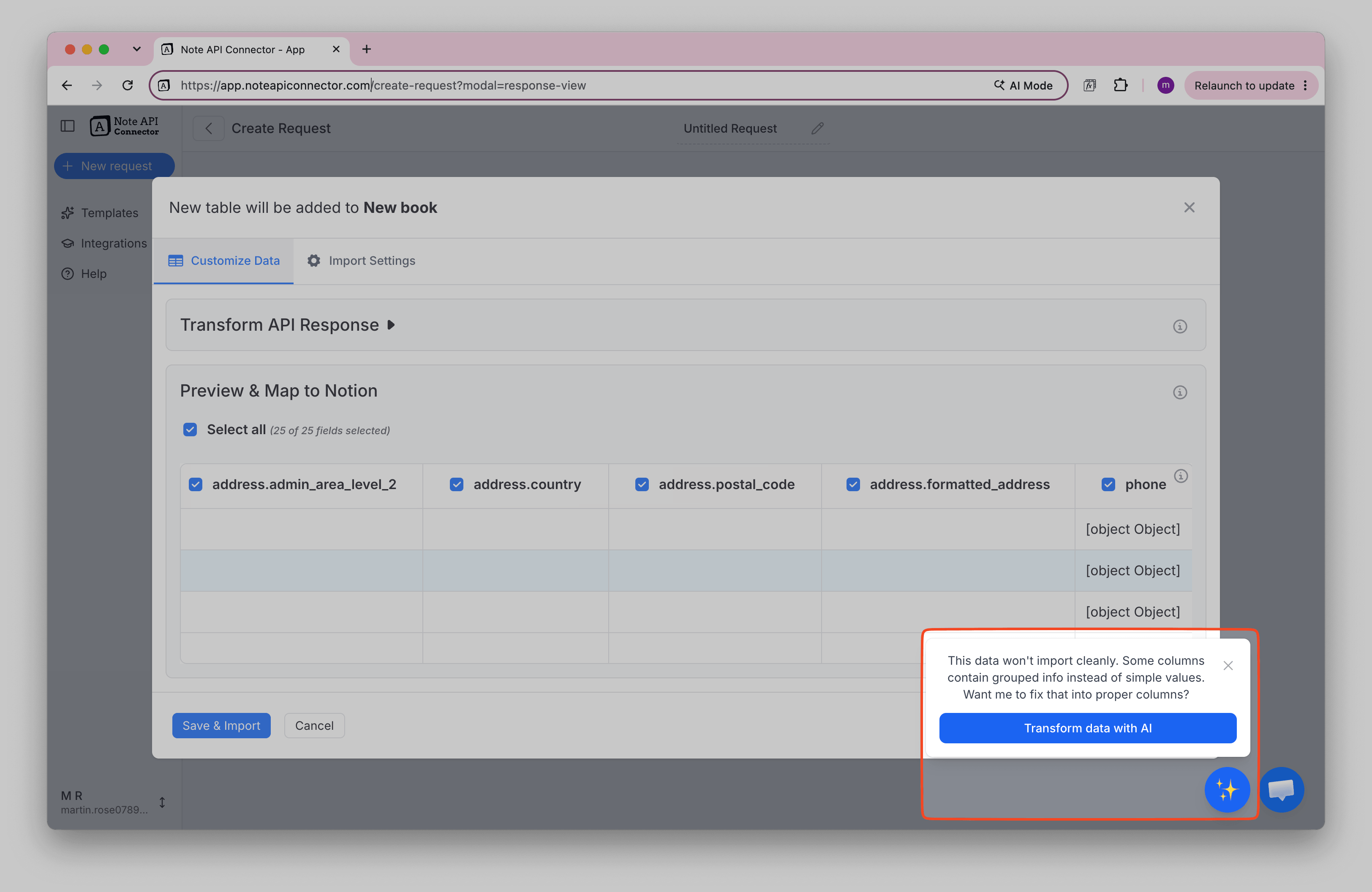
When Note API Connector spots data that won't import cleanly, it offers to fix it for you:
How to Transform Data with AI
1️⃣ Run your API request to open the Response Field Mapping view.
2️⃣ Click Transform data with AI in the message that appears, or click the ✨ button in the bottom-right corner.
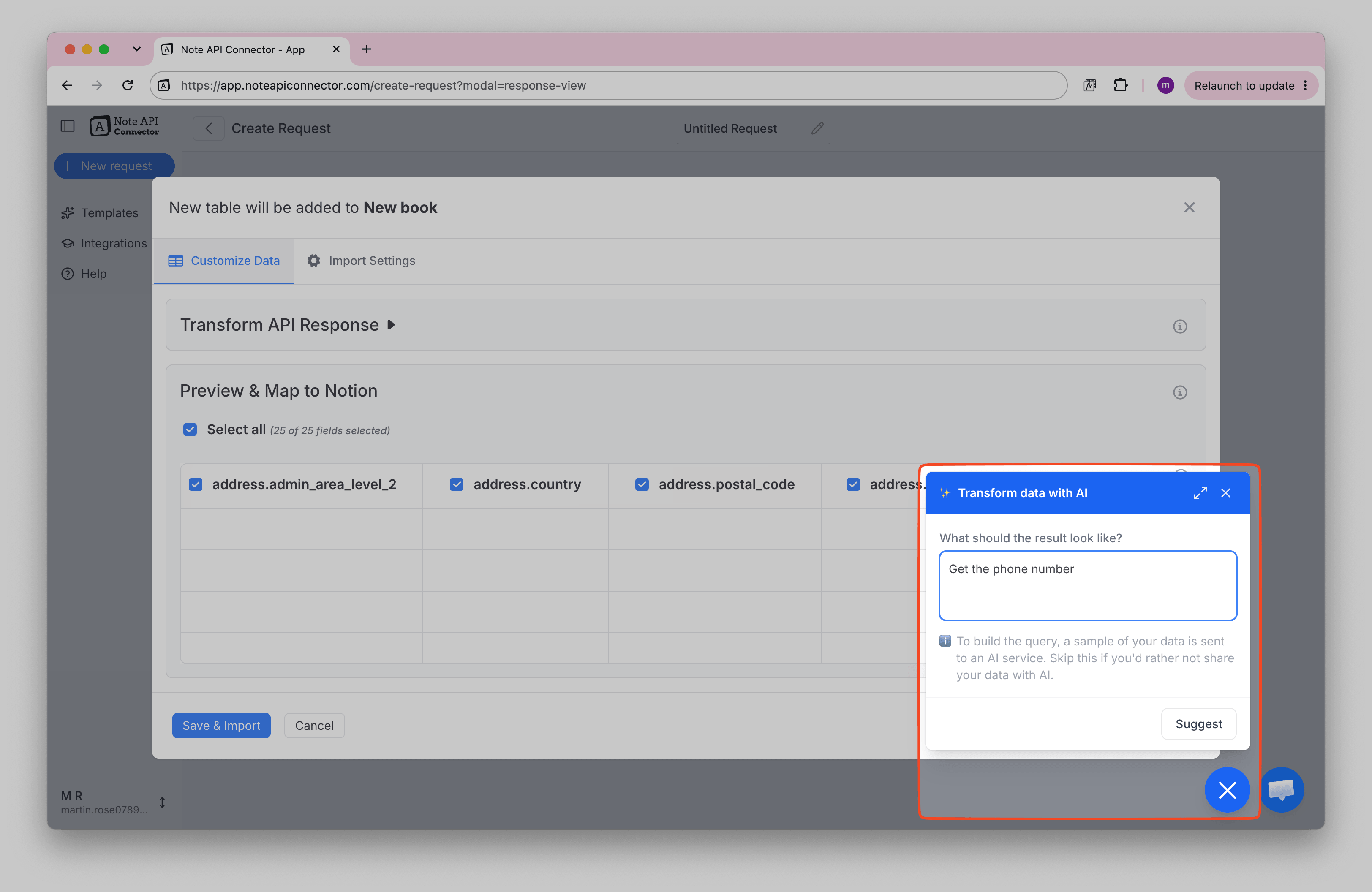
3️⃣ Under What should the result look like?, describe the table you want. For example: Get the phone number.
4️⃣ Click Suggest.
5️⃣ Check the Preview to see what your table will look like.
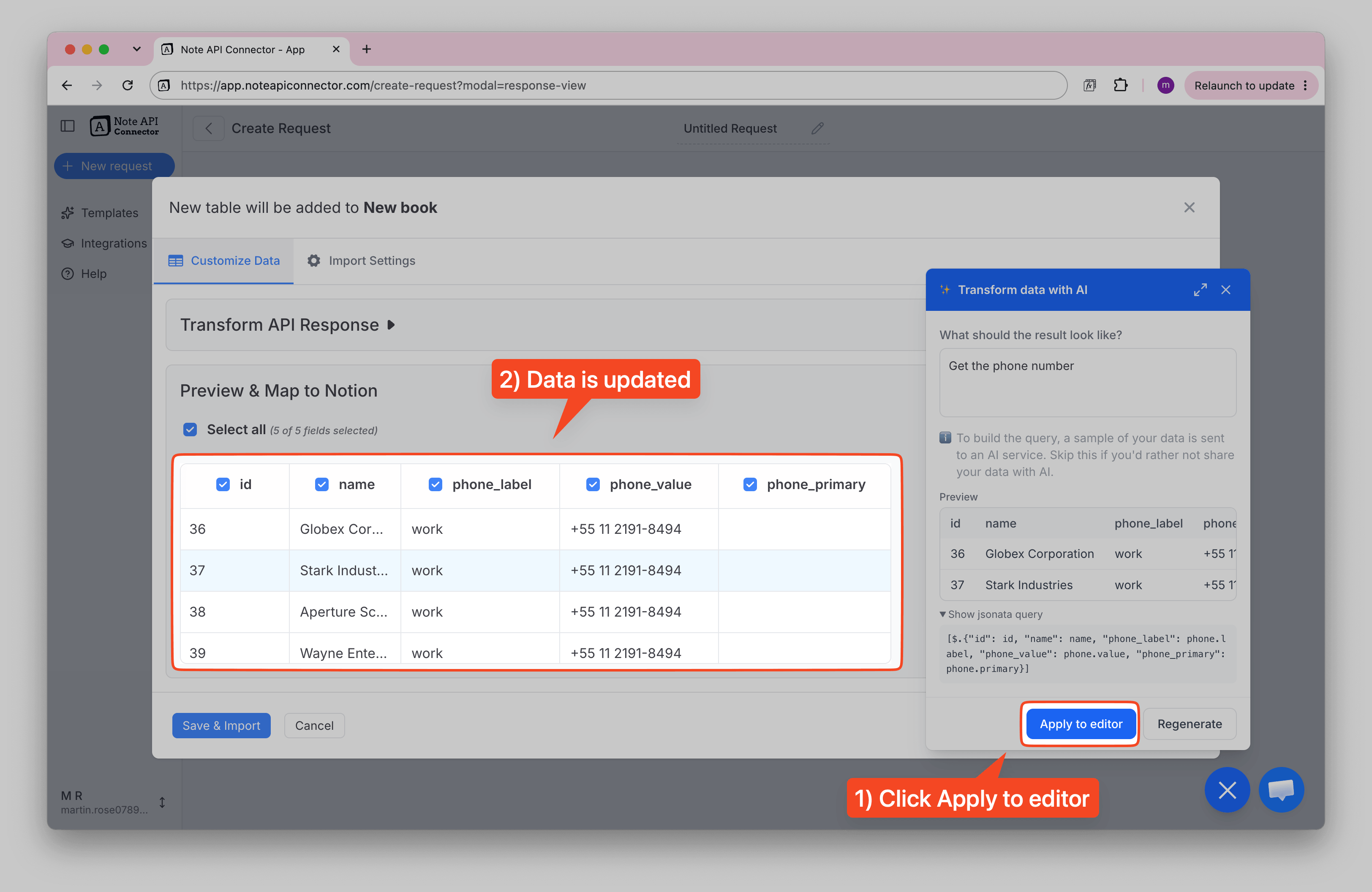
6️⃣ Click Apply to editor if it looks right, or Regenerate to try again. The transformation is added to Transform API Response → JSONata.
7️⃣ Map your columns to Notion fields and click Save & Import as usual.
Describe the result you want
Write what you want the table to look like, the same way you would explain it to a colleague.
Check the preview
After you click Suggest, a Preview shows the first rows of the new table. Nothing in your request has changed yet, so you can safely experiment.
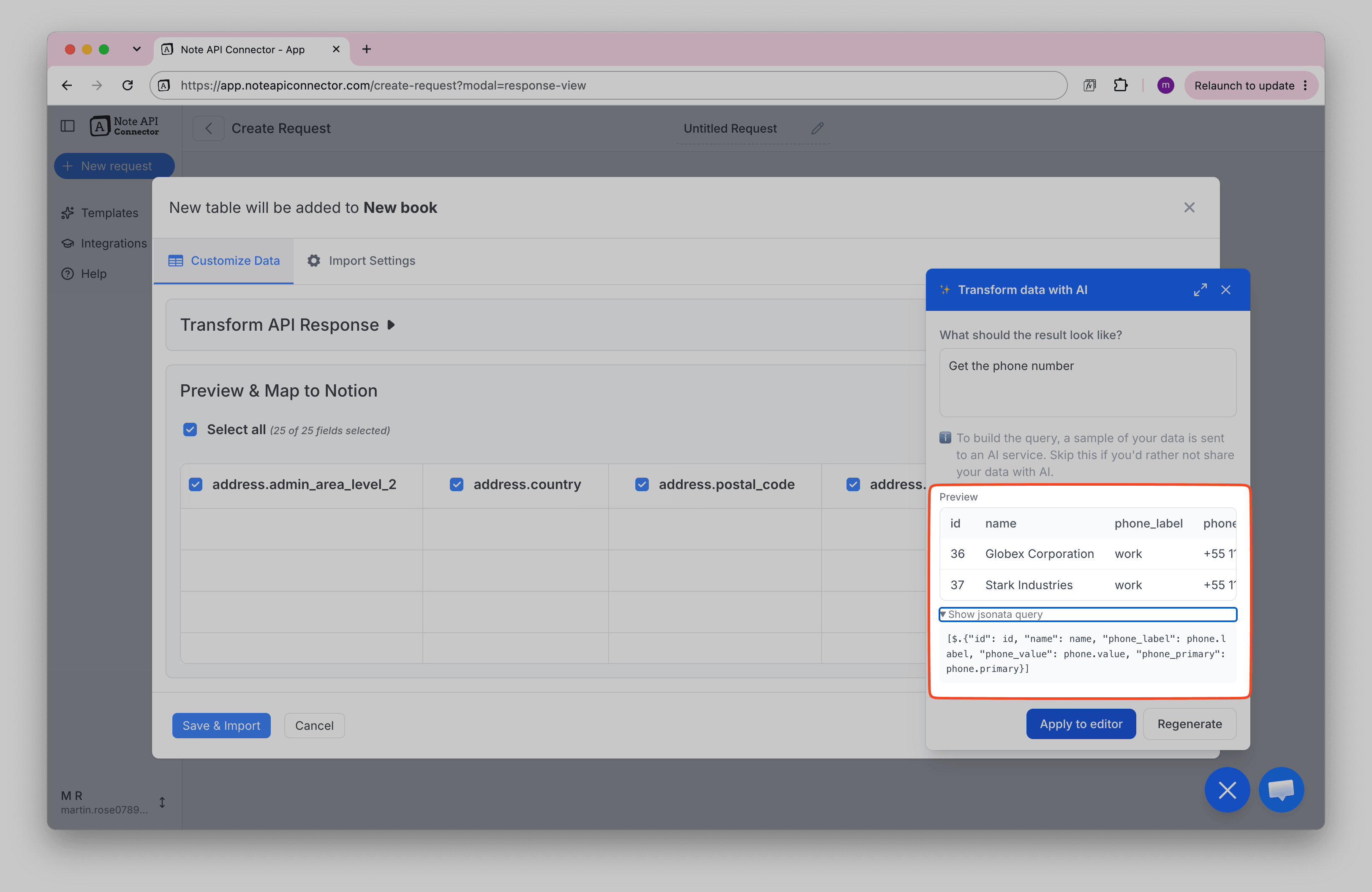
Click the ⤢ icon at the top of the panel to enlarge it and see more of the preview.
Apply it
Click Apply to editor. The preview table updates with your new columns, ready to be mapped to Notion.
In the example below, the single phone column that showed [object Object] became three readable columns: phone_label, phone_value, and phone_primary.
Where the transformation is saved
When you click Apply to editor, the query the AI wrote is placed in Transform API Response → JSONata. This is the same editor you would use to write a transformation by hand, so the AI simply fills it in for you.
To see it, click Transform API Response at the top of the view and select the JSONata tab.
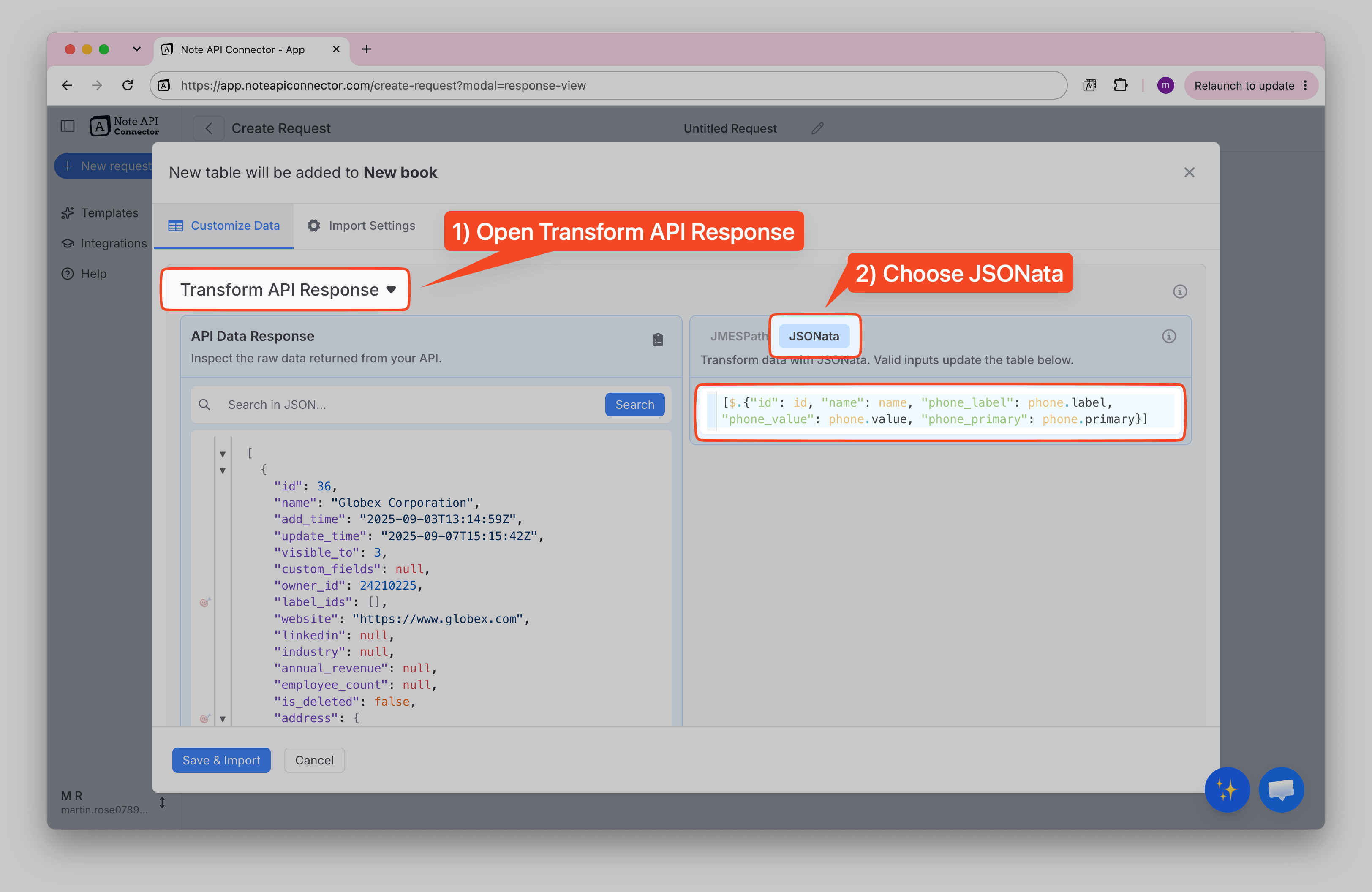
You don't need to open this editor or understand the query for the import to work. It is useful to know where it lives if you want to check, change, or remove the transformation later.
Tips for Writing a Good Description
The clearer your description, the better the result.
- Name the columns you want. Use the column names you see in the preview table.
- Say what to leave out. If you only need three columns, say so.
- Describe one row. For example, "one row per order item" or "one row per contact".
- Mention the format. For example, "show the date as a date, not a number".
| Instead of this | Try this |
|---|---|
Fix it | Show id, name, and the phone number as separate columns |
Phone | Keep only id and name, and add the phone number |
Orders | One row per order item, with the order id and customer name on every row |
Clean up | Keep id, name and email. If the email is missing, leave it blank |
Not happy with the result? Edit your description to add more detail, then click Regenerate.
What Happens to Your Data
To build the transformation, a sample of your API data is sent to an AI service. The sample helps the AI understand how your data is organized.
If your data is sensitive and you would rather not share it with AI, skip this feature. You can still shape your data yourself:
- Select Nested Data lets you click on the data you want. No AI and no code.
- JMESPath and JSONata let you write the transformation by hand.
For Advanced Users: See the Query
Behind the scenes, the AI writes a JSONata query. You never have to read it, but you can.
- Click Show jsonata query below the preview to see what the AI wrote.
- After you click Apply to editor, you can edit the query by hand in Transform API Response → JSONata.
For the example above, the AI wrote:
[$.{"id": id, "name": name, "phone_label": phone.label, "phone_value": phone.value, "phone_primary": phone.primary}]
Troubleshooting
The preview isn't what I expected. Add more detail to your description, such as the exact column names you want, then click Regenerate.
I applied a transformation and want to undo it. Open Transform API Response → JSONata and clear the editor. The table returns to its original columns.
I closed the message and can't find the feature. Click the ✨ button in the bottom-right corner of the Response Field Mapping view.